Essential CLI Tool Development Guide for the AI Era
In the AI era, Command Line Interface (CLI) tools are experiencing a renaissance. Why? Because CLI tools are naturally AI-Agent friendly!
Compared to graphical interfaces, CLI tools have structured input/output, clear help documentation, and predictable behavior patterns—these characteristics make it much easier for AI Agents to understand, learn, and automate CLI tool usage.
But have you ever struggled with creating a fully-functional CLI tool:
- Tedious command-line argument parsing?
- Chaotic configuration management?
- Difficult-to-maintain help documentation?
- Want to extend with plugins but don't know where to start?
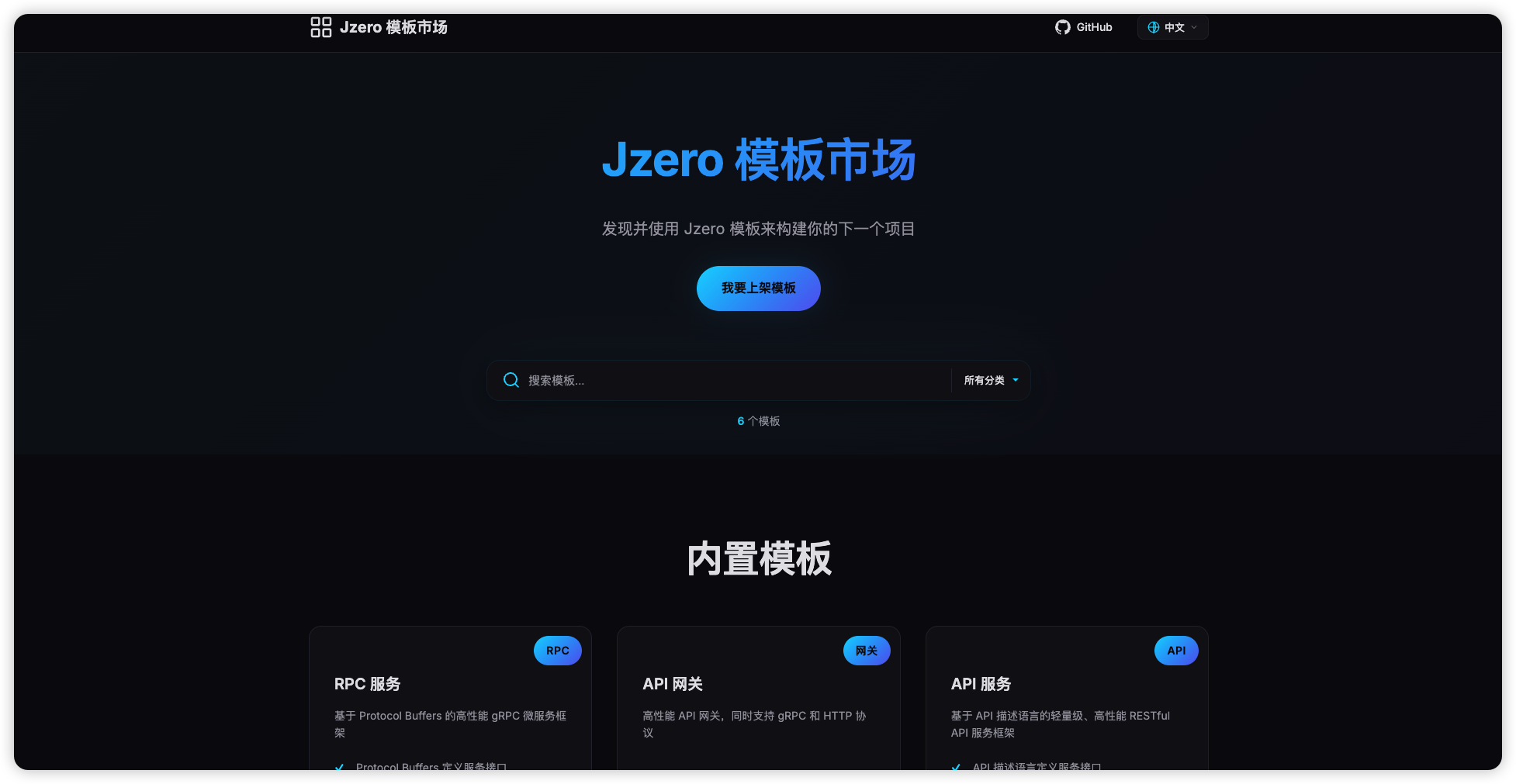
💡 First, let's introduce the jzero template market
jzero provides a rich collection of official templates and third-party templates to help you quickly build various types of projects:
🚀 Built-in Templates:
- RPC Template: High-performance gRPC microservice framework based on Protocol Buffers
- API Template: Lightweight RESTful API service framework based on API description language
- Gateway Template: High-performance API gateway supporting both gRPC and HTTP protocols
📦 Official External Templates:
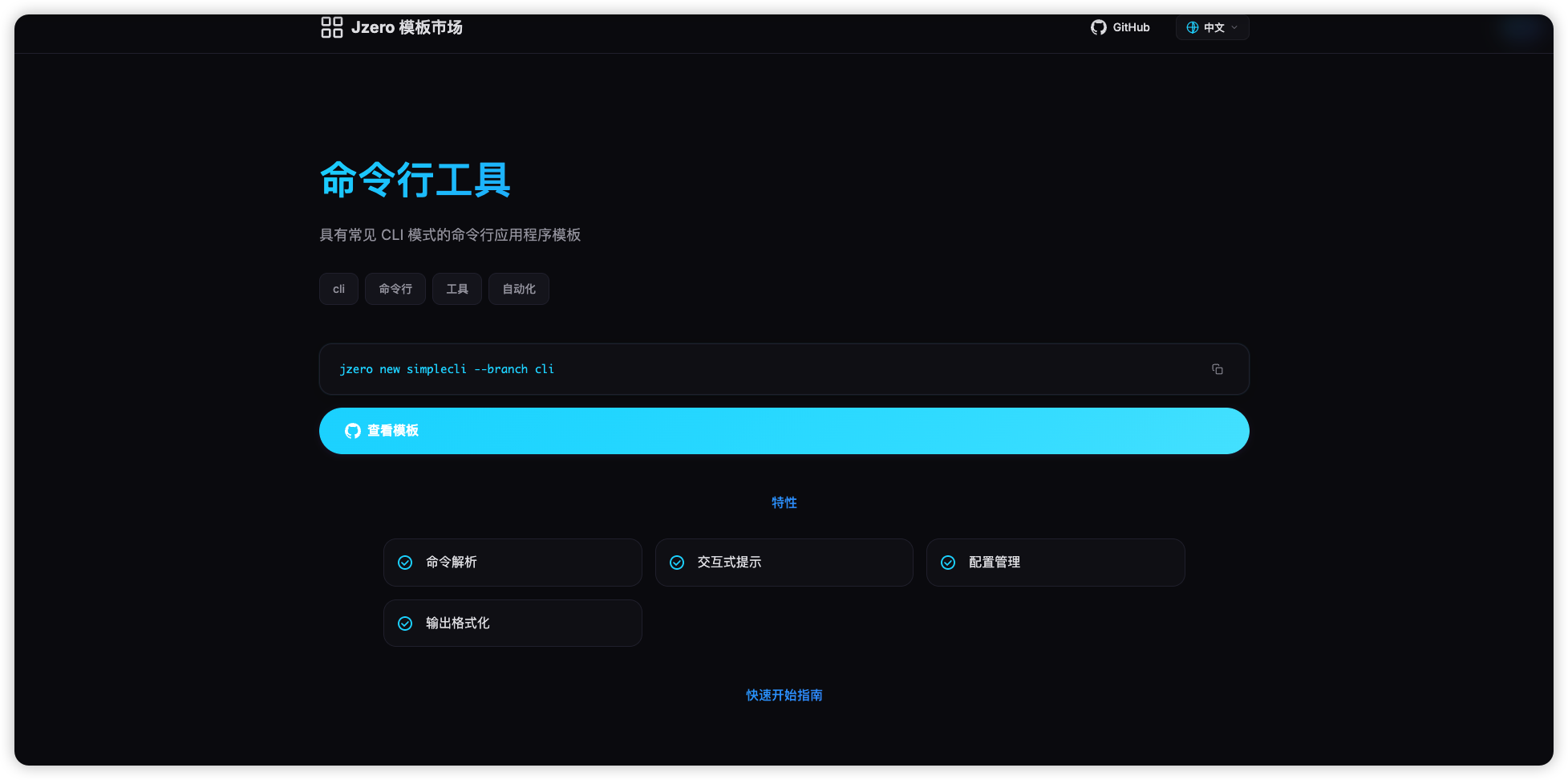
- CLI Template: Command-line application template with common CLI patterns (today's star!)
- API Template: API template optimized for Vercel deployment
- Documentation Template: Documentation site template using VuePress Hope theme
🌍 Third-party Templates:
- Contributions welcome! Share your own template to help more developers start projects quickly!
Visit jzero Template Market for more template information and usage guides.

Today, we'll introduce how to use the jzero CLI template to rapidly build professional command-line tools!

Why Choose jzero CLI Template?
The jzero CLI template is built on the industry-standard Cobra framework, providing an out-of-the-box project structure and best-practice configurations. Compared to building from scratch, using the jzero CLI template enables you to:
✅ Quick Start: Generate a complete project structure with one click, no tedious configuration needed
✅ Unified Standards: Follow industry standards with clear, understandable command structure
✅ Feature-Complete: Built-in enterprise-grade features like configuration management, plugin system, debug mode
✅ Easy Extension: Plugin architecture for easily adding new features
✅ AI-Friendly: Perfect cooperation with Claude, GPT, and other AI tools to boost development efficiency
Quick Start: Create Your First CLI Tool in 3 Minutes
# 1. Install jzero (if not already installed)
go install github.com/jzero-io/jzero/cmd/jzero@latest
# 2. Create a new CLI project
jzero new mycli --branch cli
cd mycli
# 3. Install dependencies and build
go mod tidy
go build
# 4. Test run
./mycli versionOutput example:
mycli version 1.0.0 darwin/amd64
Go version go1.21.0
Git commit abc123
Build date 2024-01-01 12:00:00 +0000 UTCIt's that simple! You now have a fully-functional CLI tool framework.
Core Concepts: Three-Layer Command Structure
The jzero CLI template is based on the Cobra framework, using a clear three-layer command structure:
Root Command
├── Command
│ └── Sub Command1. Root Command
The Root Command is the entry point of the CLI tool, defining basic information, global configuration, and top-level commands.
// main.go
var rootCmd = &cobra.Command{
Use: "mycli",
Short: "My CLI tool",
Long: `A powerful command-line tool to help improve your productivity`,
}Root command features:
- ✅ Define global flags (like
--debug,--config) - ✅ Register top-level commands
- ✅ Provide overall help information for the tool
2. Command
Commands are direct subcommands under the root command, representing major functional modules.
mycli version # Version command - display version information
mycli config # Config command - manage configuration
mycli plugin # Plugin command - manage plugins
mycli server # Server command - start serverCommand characteristics:
- ✅ Directly mounted under root command
- ✅ Can have independent flags and arguments
- ✅ Can contain subcommands, forming a command tree
3. Sub Command
Sub Commands are the next level under commands, used to implement more granular functionality.
# Subcommands of config command
mycli config init # Initialize configuration
mycli config set # Set configuration item
mycli config get # Get configuration item
mycli config list # List all configurations
# Subcommands of plugin command
mycli plugin install # Install plugin
mycli plugin remove # Remove plugin
mycli plugin list # List plugins
mycli plugin update # Update pluginSubcommand advantages:
- ✅ Modular functionality with clear logic
- ✅ Support multi-level nesting (e.g.,
mycli config database connect) - ✅ Each subcommand can be developed and maintained independently
Command Examples Comparison
# Root Command
mycli # Execute root command
# Command (Level 1)
mycli config # Execute config command
mycli plugin # Execute plugin command
# Sub Command (Level 2)
mycli config init # Execute config init subcommand
mycli plugin install # Execute plugin install subcommand
# Deeper subcommands (Level 3)
mycli server start # Start server
mycli server stop # Stop server
mycli server status # View server statusTypes of Flags
Flags configure command behavior, divided into three types:
Local Flags - Only valid for current command:
Cmd.Flags().StringP("output", "o", "", "Output file")Persistent Flags - Valid for current command and all its subcommands:
rootCmd.PersistentFlags().BoolP("verbose", "v", false, "Verbose output mode")Global Flags - Valid for all commands:
mycli --debug # Enable debug mode
mycli --config file.yaml # Specify configuration fileConfiguration Management: Flexible Multi-Layer Configuration
The jzero CLI template provides a powerful configuration management system supporting three configuration methods:
Configuration Priority
Environment variables > Command-line flags > Configuration file1. Configuration File (~/.YOUR_APP.yaml)
Default configuration file location: ~/.mycli.yaml
# Debug mode
debug: false
# Debug sleep time (seconds)
debug-sleep-time: 0
# Custom configuration
database:
host: localhost
port: 5432
name: mydb2. Environment Variable Configuration
The jzero CLI template supports two methods for using environment variables:
Method 1: Define environment variables in .mycli.env.yaml
# .mycli.env.yaml
# These environment variables will be set in the system environment
DATABASE_URL: postgres://localhost:5432/mydb
LOG_LEVEL: debug
API_KEY: sk-xxxxxReference in main configuration file:
# ~/.mycli.yaml
database:
url: ${DATABASE_URL} # Use environment variable
log:
level: ${LOG_LEVEL} # Use environment variable
api:
key: ${API_KEY} # Use environment variableMethod 2: Direct environment variable usage (auto-mapped)
The jzero CLI template automatically maps environment variables to configuration fields:
# Set environment variables directly, auto-mapped to config
export MYCLI_DEBUG=true
export MYCLI_DEBUG_SLEEP_TIME=5
export MYCLI_GREET_NAME="Alice"Environment Variable Naming Rules:
Format: {APP_PREFIX}_{CONFIG_PATH}
{APP_PREFIX}: App name prefix (uppercase), e.g.,MYCLI,JZERO{CONFIG_PATH}: Configuration path with.and-replaced by_
Mapping examples:
| Config Field | Environment Variable |
|---|---|
config.C.Debug | MYCLI_DEBUG |
config.C.DebugSleepTime | MYCLI_DEBUG_SLEEP_TIME |
config.C.Greet.Name | MYCLI_GREET_NAME |
config.C.Database.Host | MYCLI_DATABASE_HOST |
3. Command-line Flags
# Override configuration via command line
./mycli --debug
./mycli --config custom.yaml
./mycli --database.url postgres://localhost/mydbUnified Configuration Management: Using internal/config/config.go
One of the core advantages of the jzero CLI template is the unified configuration management system. All configuration is managed through internal/config/config.go, ensuring consistency and maintainability.
Define Configuration Structure
Define configuration in internal/config/config.go:
package config
// C global configuration variable (direct access, no function needed)
var C Config
type Config struct {
// Root command persistent flags
Debug bool `mapstructure:"debug"`
DebugSleepTime int `mapstructure:"debug-sleep-time"`
// Add your custom configuration fields here
// Database DatabaseConfig `mapstructure:"database"`
// Server ServerConfig `mapstructure:"server"`
}
// Configuration initialization is handled automatically by jzero template
// InitConfig() function automatically reads config files, env vars, and flagsKey Field Descriptions:
mapstructuretag: Maps field names in configuration files- Global variable
C: Access configuration directly, no function call needed - Configuration initialization: Automatically handled by template, no manual coding required
Configuration Priority
The jzero CLI template follows this configuration priority (from high to low):
Environment variables > Command-line flags > Configuration fileConfiguration Usage Examples
1. Using Configuration File (~/.mycli.yaml)
# ~/.mycli.yaml
debug: false
debug-sleep-time: 02. Using Environment Variable File (.mycli.env.yaml)
# .mycli.env.yaml
MYCLI_DEBUG: "true"
MYCLI_DEBUG_SLEEP_TIME: "5"3. Using Command-line Flags
./mycli --debug
./mycli --debug-sleep-time 104. Combined Usage (Priority Example)
# Config file sets debug=false
# Environment variable sets MYCLI_DEBUG=true
# Command-line doesn't set
# Result: debug=true (environment variable has highest priority)Using Configuration in Commands
The jzero CLI template uses the global variable config.C to access configuration:
// internal/command/example/example.go
package example
import (
"fmt"
"mycli/internal/config"
"github.com/spf13/cobra"
)
var Cmd = &cobra.Command{
Use: "example",
Short: "Example command",
Run: func(cmd *cobra.Command, args []string) {
// Use global configuration variable directly
if config.C.Debug {
fmt.Printf("Debug mode enabled\n")
fmt.Printf("Debug sleep time: %d seconds\n", config.C.DebugSleepTime)
}
// Your business logic...
},
}
// If command-specific flags are needed, add them in init()
func init() {
// Command-specific flags are automatically bound to config.C
// For example: Cmd.Flags().String("output", "", "Output file")
}Adding Custom Configuration Fields
Add fields to the Config struct, supporting nested structures:
type Config struct {
Debug bool `mapstructure:"debug"`
DebugSleepTime int `mapstructure:"debug-sleep-time"`
// Add custom configuration
Database DatabaseConfig `mapstructure:"database"`
Server ServerConfig `mapstructure:"server"`
}Then use in configuration file:
# ~/.mycli.yaml
debug: false
database:
host: localhost
port: 5432
server:
host: 0.0.0.0
port: 8080Advantages of Unified Configuration
✅ Automatic Priority Handling: Viper automatically handles configuration priority
✅ Type Safe: Use Go structs with mapstructure tags
✅ Environment Variable Support: Automatically maps environment variables to config fields
✅ Flexible Extension: Adding new configuration fields is very simple
✅ Global Access: Access from anywhere via config.C global variable
✅ Command-Specific Config: Supports independent configuration for different commands
Adding Custom Commands: Three Simple Steps
Step 1: Add Field to Config (If Needed)
If the command needs configuration, add a nested structure in internal/config/config.go:
type Config struct {
Debug bool `mapstructure:"debug"`
DebugSleepTime int `mapstructure:"debug-sleep-time"`
// Add greet command configuration
Greet GreetConfig `mapstructure:"greet"`
}
type GreetConfig struct {
Name string `mapstructure:"name"`
}Step 2: Create Command File
Create a new directory and command file under internal/command/:
// internal/command/greet/greet.go
package greet
import (
"fmt"
"mycli/internal/config"
"github.com/spf13/cobra"
)
var Cmd = &cobra.Command{
Use: "greet",
Short: "Greeting command",
Long: `Send friendly greetings to users`,
Run: func(cmd *cobra.Command, args []string) {
// Get name from unified configuration (mapped to greet.name)
name := config.C.Greet.Name
if name == "" {
name = "World"
}
fmt.Printf("Hello, %s!\n", name)
},
}
func init() {
// Add flag, automatically bound to config.C.Greet.Name
Cmd.Flags().StringP("name", "n", "", "Specify the name to greet")
}Step 3: Register Command
Import and register the command in main.go:
import (
"mycli/internal/command/greet"
// other imports...
)
func init() {
rootCmd.AddCommand(greet.Cmd)
}Step 3: Test Usage
go build
# Method 1: Use default value
./mycli greet
# Output: Hello, World!
# Method 2: Use command-line flag
./mycli greet --name Alice
# Output: Hello, Alice!
# Method 3: Use configuration file
echo "greet:" >> ~/.mycli.yaml
echo " name: Bob" >> ~/.mycli.yaml
./mycli greet
# Output: Hello, Bob!
# Method 4: Use environment variable
export MYCLI_GREET_NAME="Charlie"
./mycli greet
# Output: Hello, Charlie!Debug Mode: Developer's Best Friend
The jzero CLI template includes comprehensive debug support:
Three Ways to Enable Debugging
Method 1: Configuration File
# ~/.mycli.yaml
debug: true
debug-sleep-time: 5 # Debug sleep time (seconds)Method 2: Environment Variables
export MYCLI_DEBUG=true
./mycliMethod 3: Command-line Flags
./mycli --debug
./mycli --debug --debug-sleep-time 5Debug Features
- Verbose Logging: Display detailed execution process and intermediate states
- Sleep Time Control: Pause between key steps for observation
- Error Stack Traces: Clear error information and call stacks
Plugin System: Infinite Extension Possibilities
The jzero CLI template supports a powerful plugin system, allowing your tool to dynamically extend functionality.
Plugin Naming Rules
Plugin executable files are prefixed with YOUR_APP-, for example:
mycli-gitmycli-dockermycli-deploy
Plugin Auto-Discovery
The system automatically searches for executable files starting with mycli- from PATH.
Plugin Usage Examples
# Install plugin to PATH
sudo cp mycli-git /usr/local/bin/
# Use plugin directly
./mycli git status
./mycli docker build
./mycli deploy productionMulti-level Command Naming
Plugins support multi-level command structures:
# Plugin file: mycli-k8s-pod
./mycli k8s pod list
# Plugin file: mycli-k8s-service
./mycli k8s service listBuilding Version Information: Professional Release Process
Inject version information at build time to make your tool more professional:
go build \
-ldflags="-X 'main.version=1.0.0' \
-X 'main.commit=$(git rev-parse HEAD)' \
-X 'main.date=$(date -u +%Y-%m-%dT%H:%M:%SZ)'" \
-o mycliVersion information after building:
mycli version 1.0.0 darwin/amd64
Go version go1.21.0
Git commit 8f7a3b2c1d4e5f6a7b8c9d0e1f2a3b4c5d6e7f8
Build date 2024-01-15T08:30:00ZProject Structure: Clear Code Organization
The jzero CLI template provides a clear project structure:
mycli/
├── main.go # Entry file
├── internal/
│ ├── command/ # Command implementations
│ │ ├── version/ # Version command
│ │ │ └── version.go
│ │ └── greet/ # Custom command
│ │ └── greet.go
│ └── config/ # Configuration management
│ └── config.go
├── go.mod
└── go.sumThis structure clearly separates different functional code, making it easy to maintain and extend.
Related Resources
- jzero GitHub: https://github.com/jzero-io/jzero
- jzero Documentation: https://docs.jzero.io
- CLI Template: https://templates.jzero.io/external/cli/
- Cobra Documentation: https://github.com/spf13/cobra
- Viper Documentation: https://github.com/spf13/viper
Let jzero CLI template be your capable assistant in the AI era! 🚀
Find it useful? Please give jzero a ⭐ Star to support our continued improvement!